

Configure state tax rates
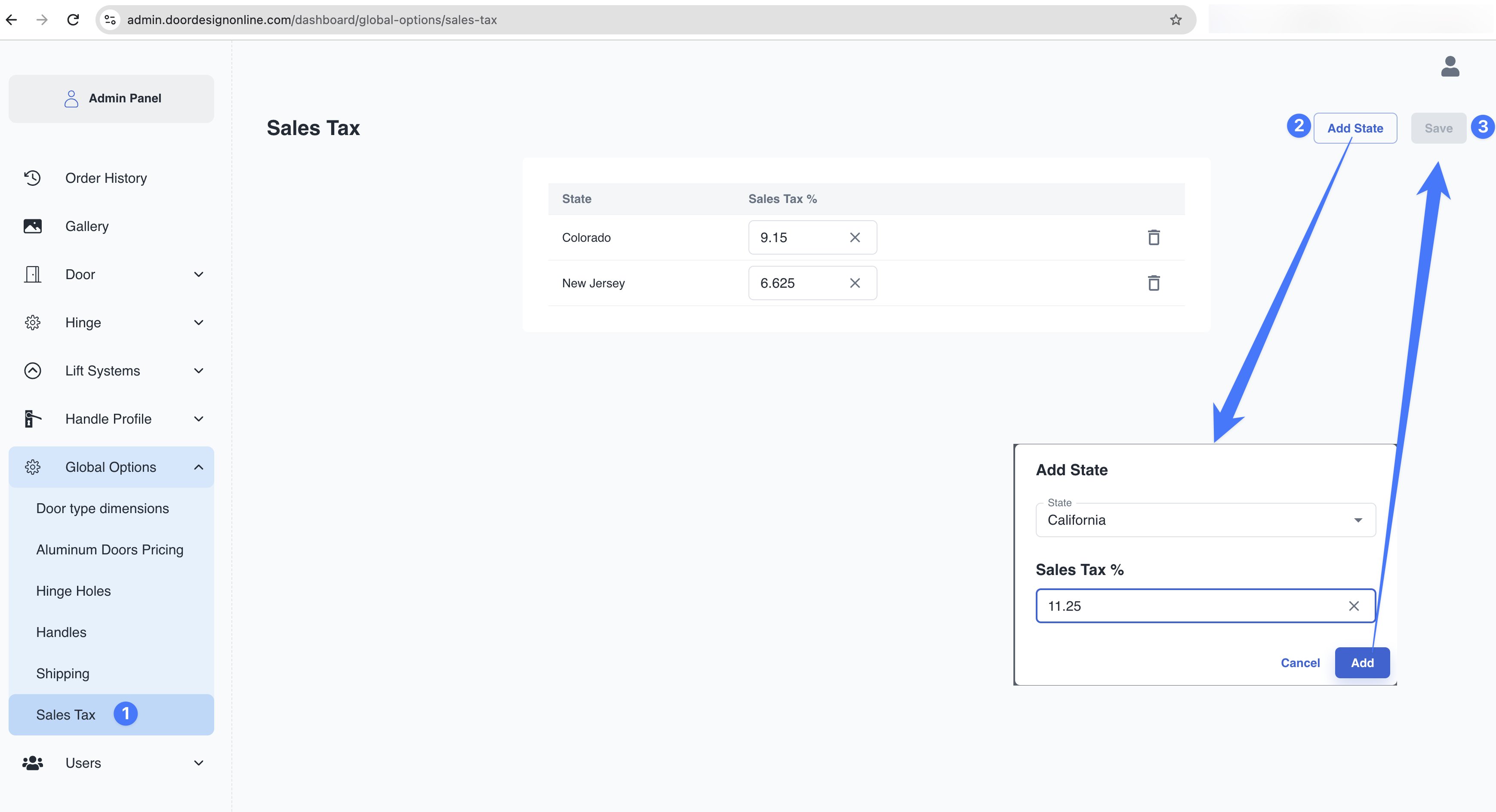
Open Sales Tax in the Admin Panel, or navigate to Admin Panel → Global Options → Sales Tax.1
Open Sales Tax
Select Global Options in the left navigation, then choose Sales Tax. The table lists configured states and their Sales Tax % values.
2
Add a state
Click Add State. In the dialog, select a State, enter the Sales Tax % (for example, enter
6.625 for 6.625%), and click Add.3
Save the configuration
Click Save in the top-right corner to retain your changes.
How sales tax affects the shopping cart
The customer selects a State in the Delivery address section of the cart. The order summary shows a state-specific tax line, including the state name, configured percentage, and tax amount. In the supplied example, the delivery state is New Jersey, so the cart shows New Jersey Sales Tax (6.625%).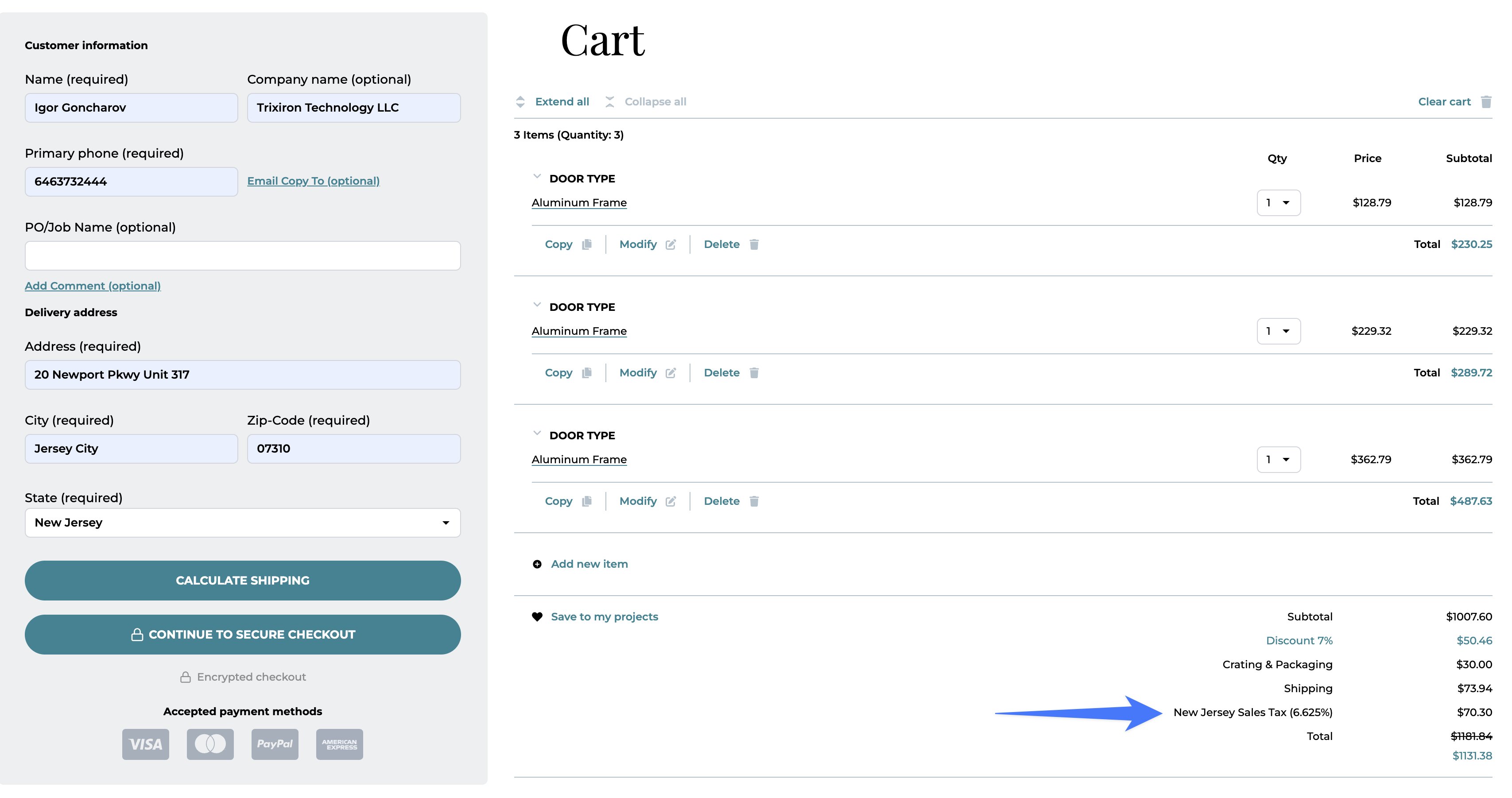
Shopping cart example
In this example, the displayed amounts reconcile as follows:- Tax calculation base: $1,007.60 - $50.46 + $30.00 + $73.94 = $1,061.08.
- Sales tax: $1,061.08 × 6.625% = $70.30 after rounding.
- Final total: $1,061.08 + $70.30 = $1,131.38.